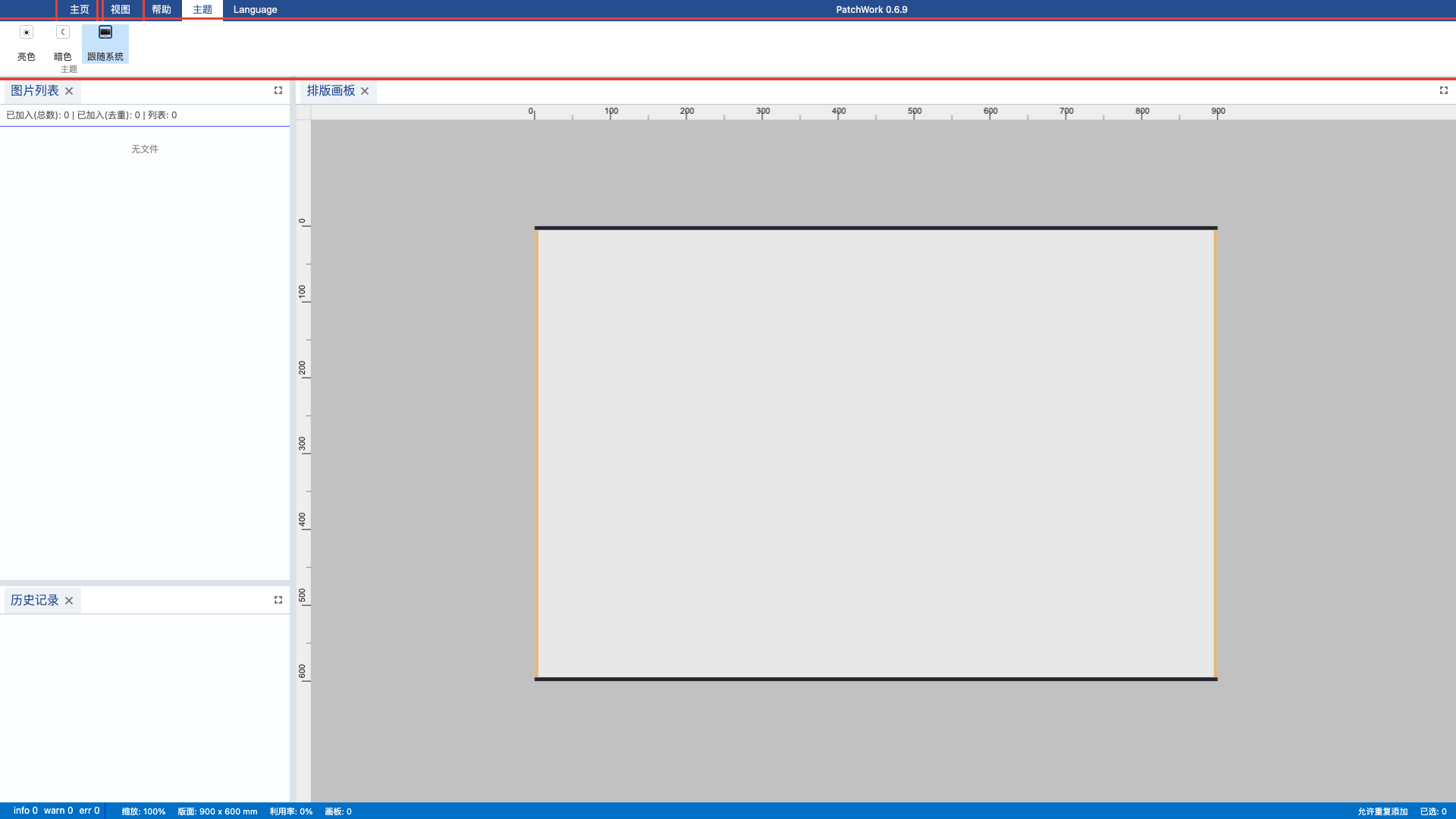
Language & Theme
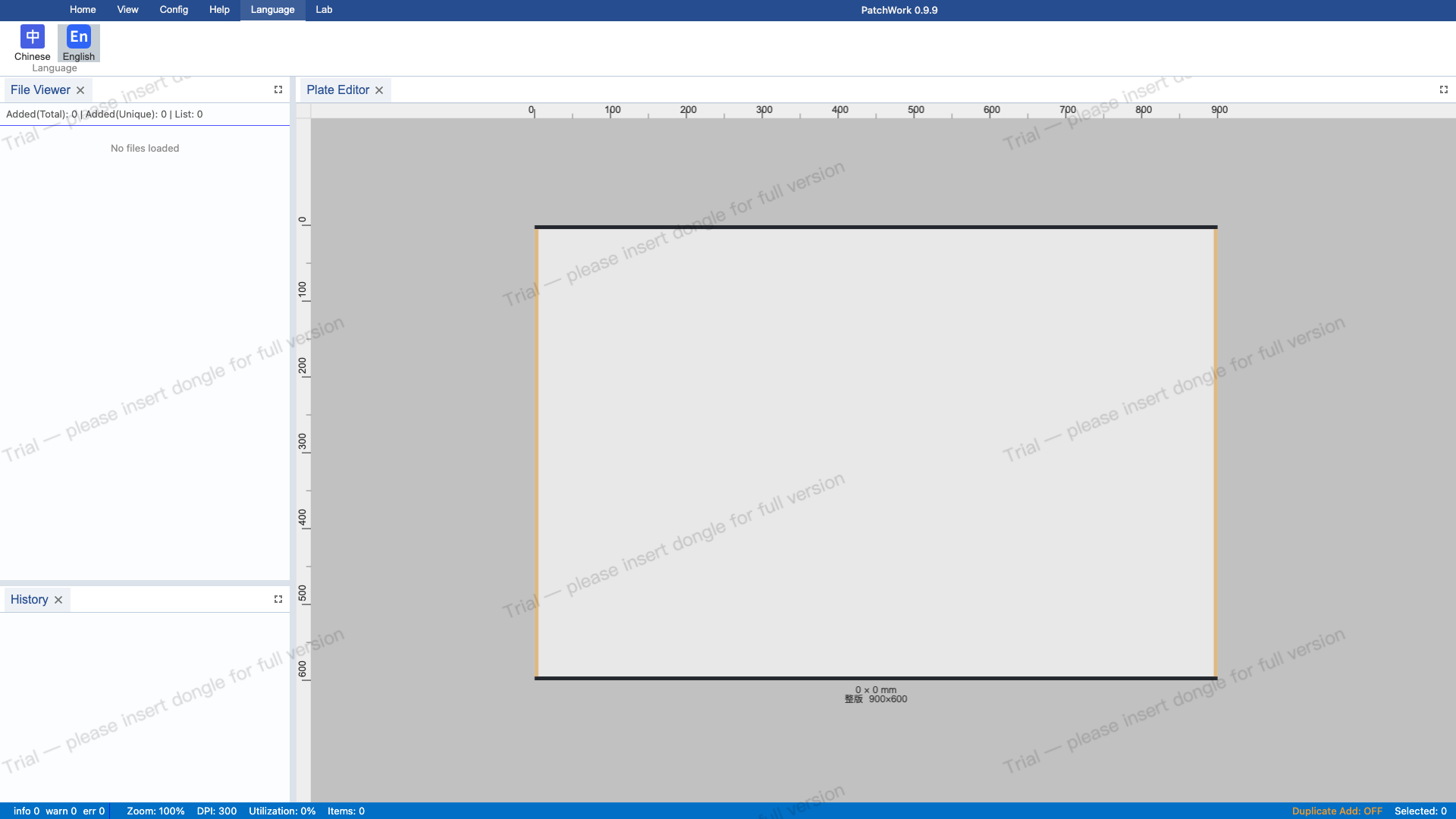
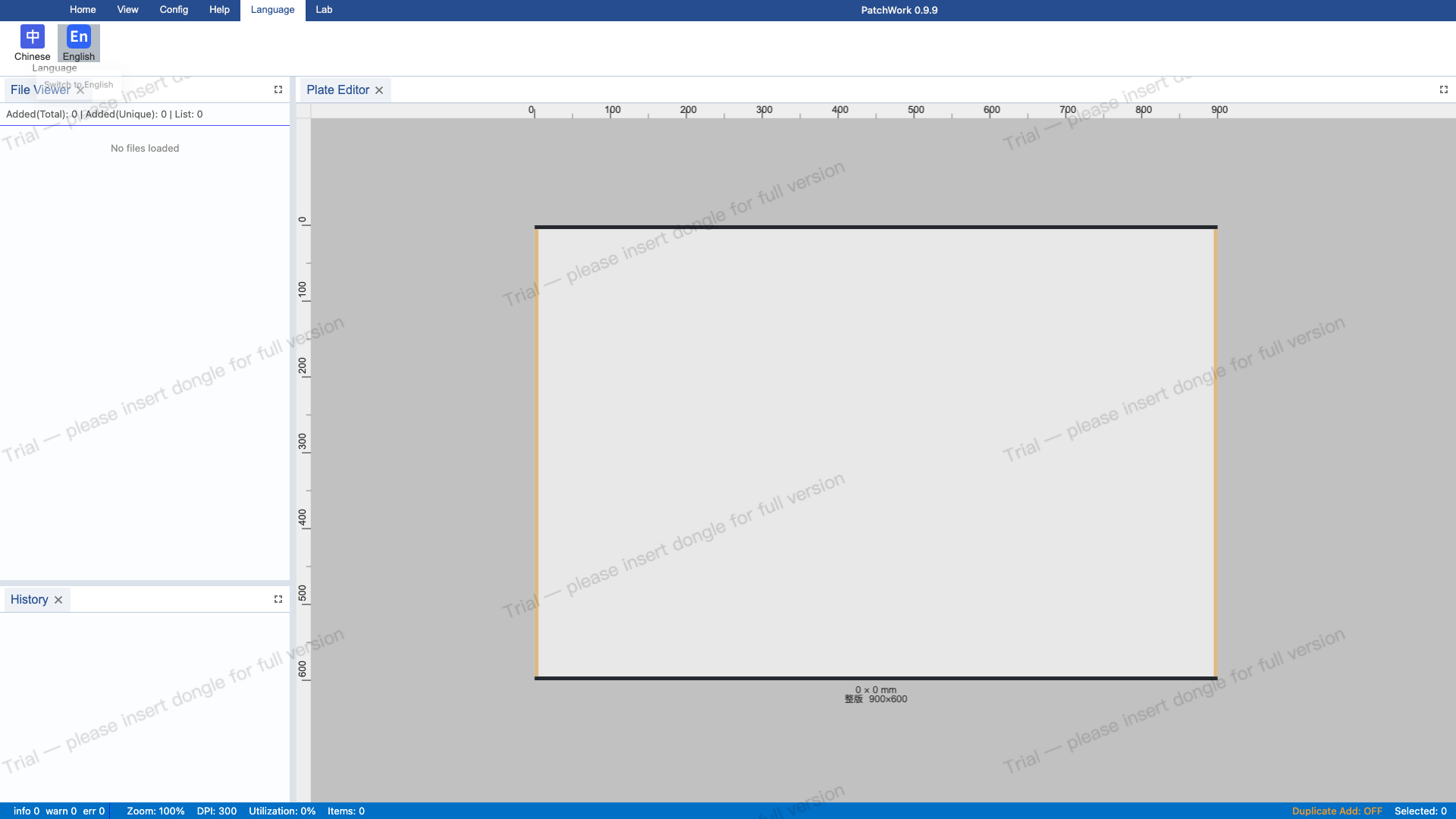
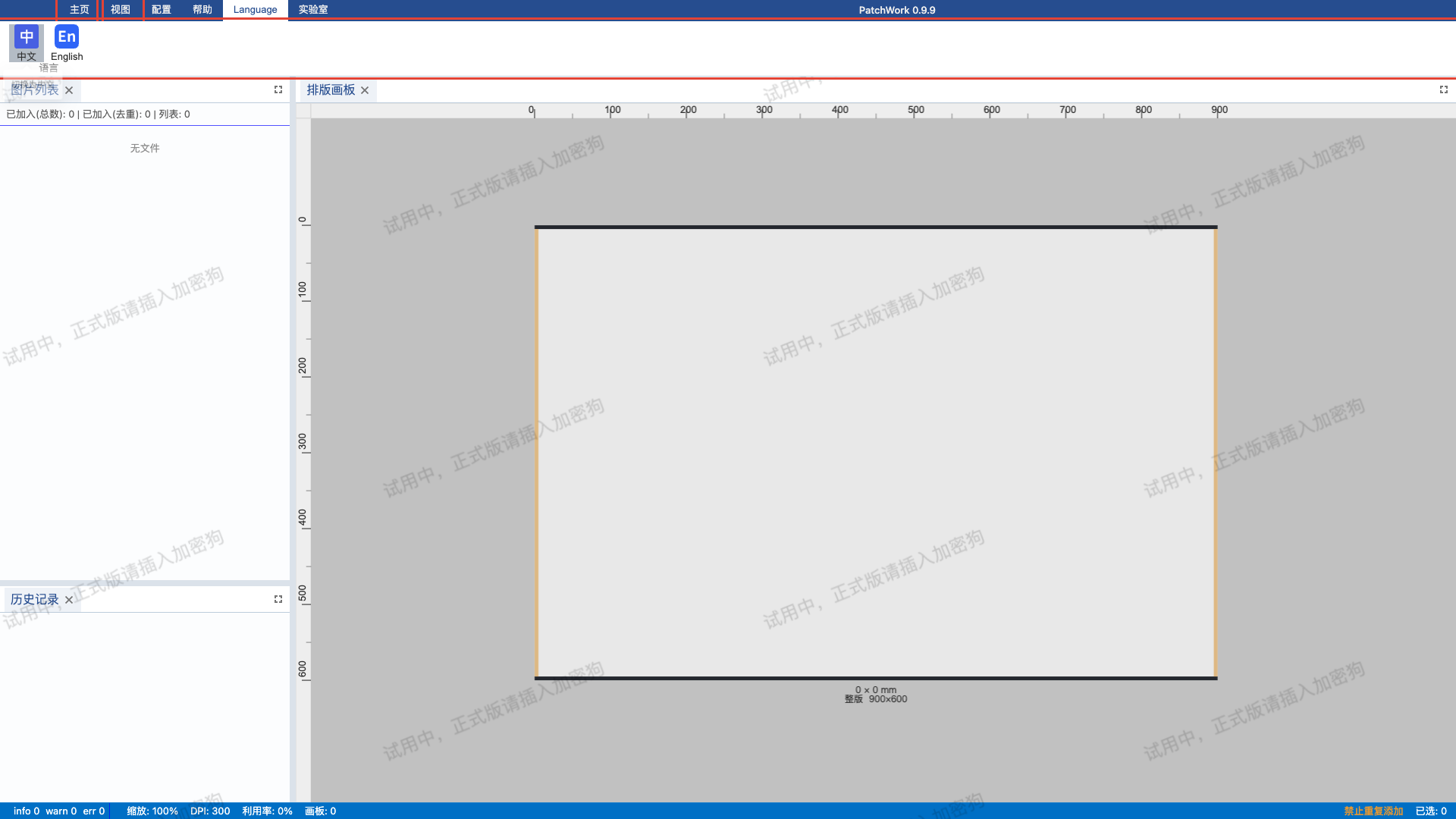
2 Switch to English
Click the English button. The entire UI switches to English immediately, including Ribbon tab names, panel titles, and button text.
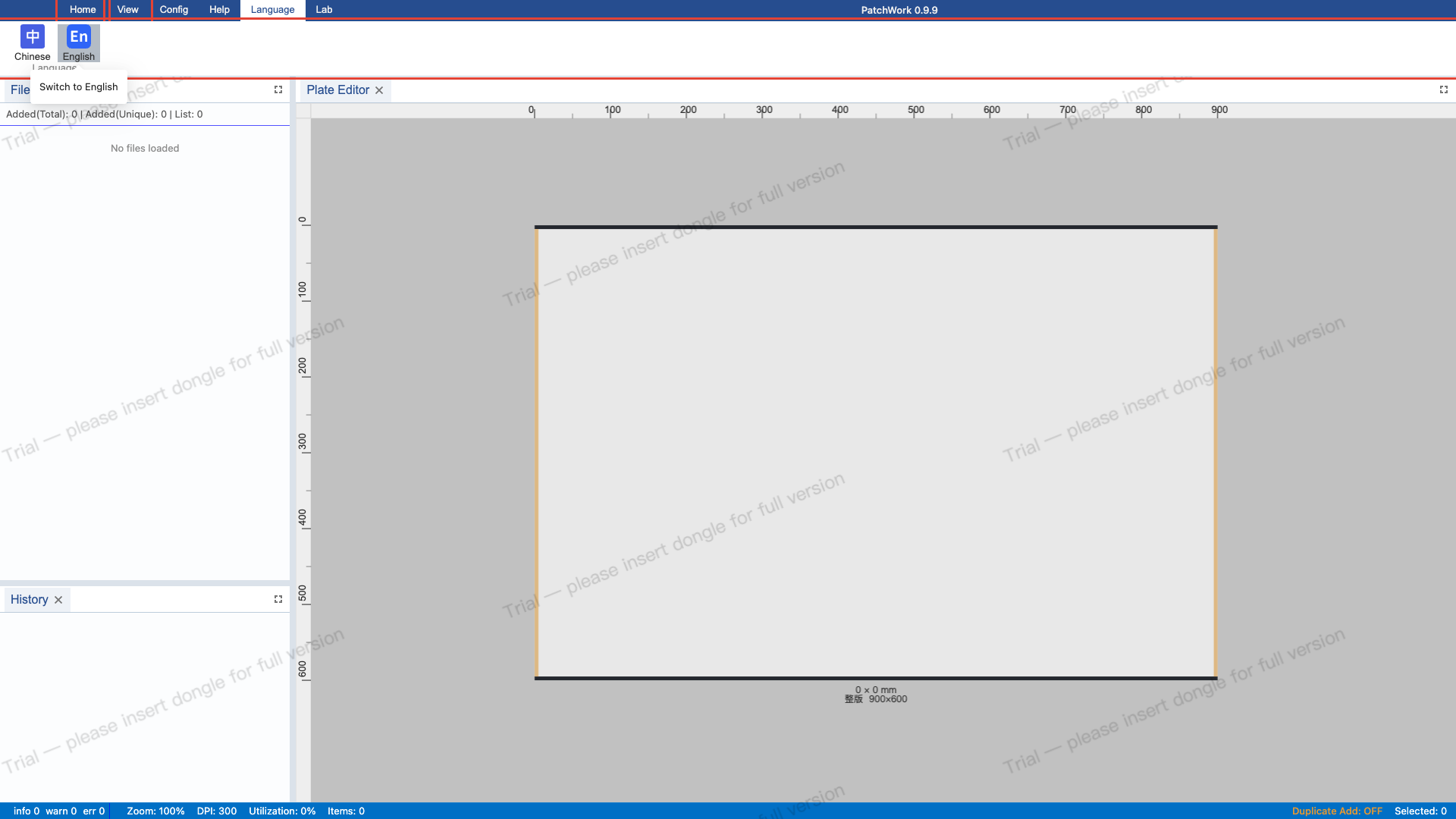
3 Observe English Interface
All Ribbon tab names (Home / View / Help / Theme / Language), panel titles, and button text have changed to English. Key UI elements are highlighted to demonstrate the language switch.
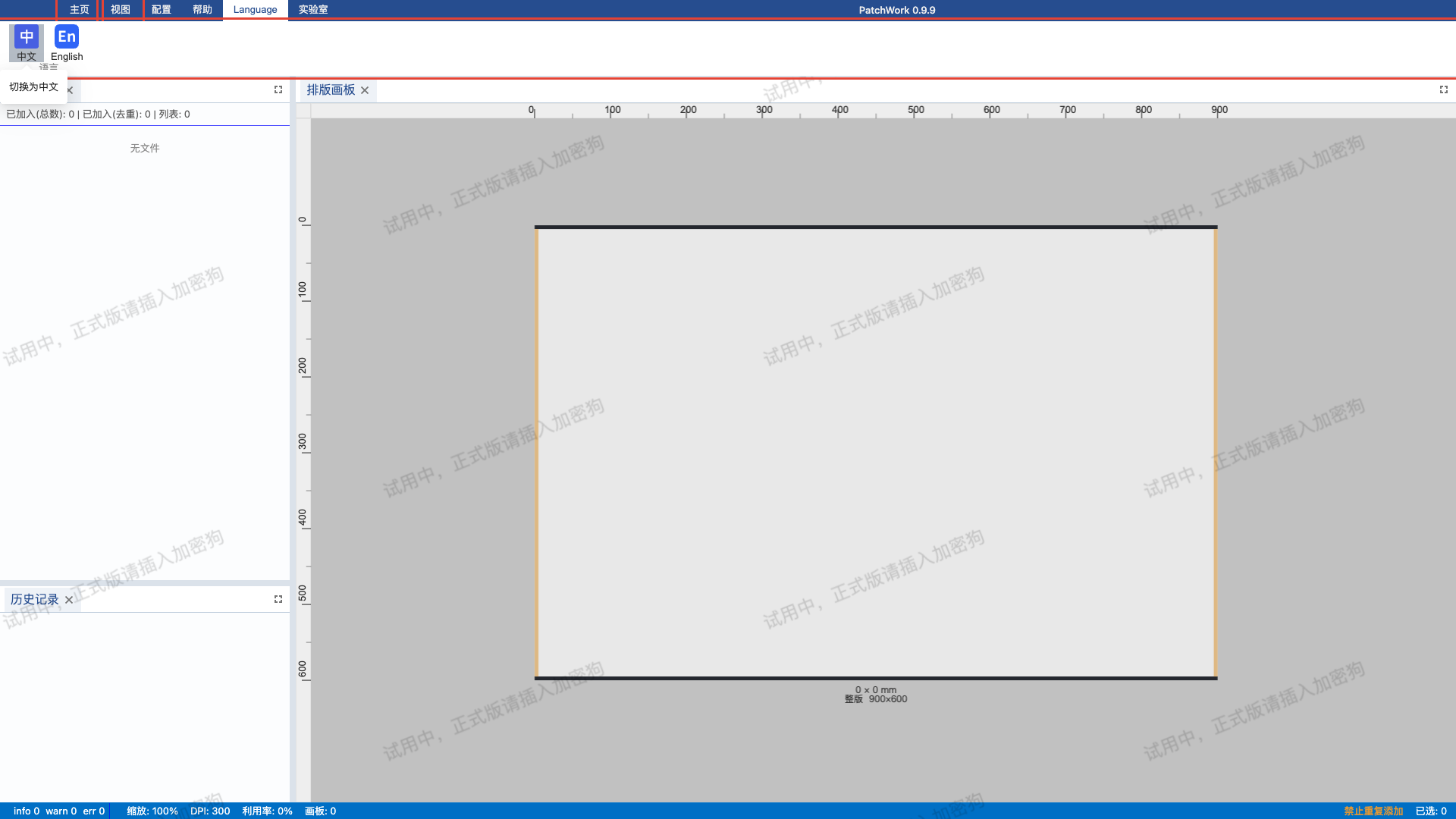
5 Theme Tab
Click the "Theme" tab in the Ribbon to switch to the theme settings area. The theme area provides three options: Light, Dark, and System.
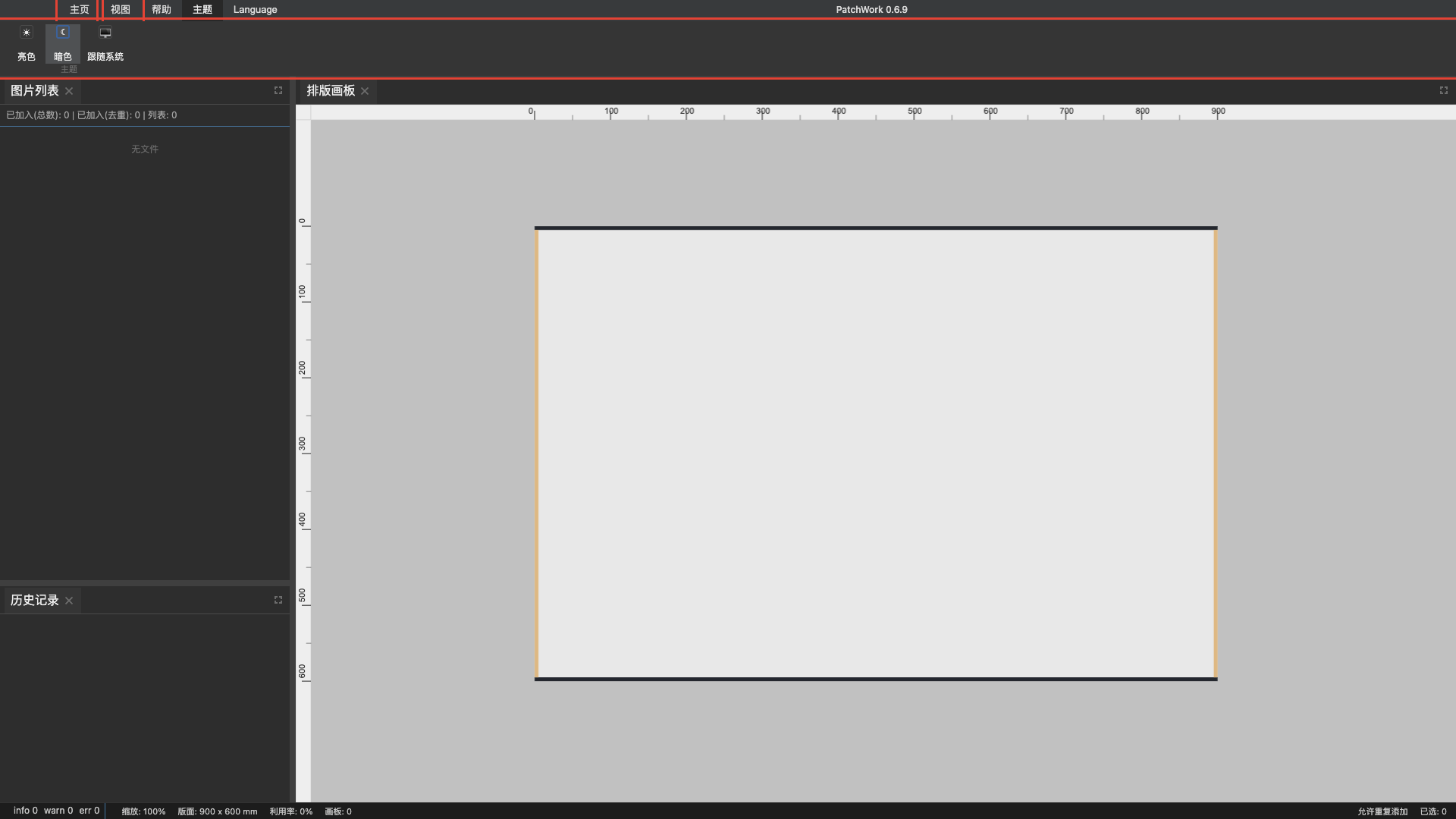
6 Switch to Dark Theme
Click the dark theme button. The HTML element gets data-theme="dark", and background, text, borders, and Ribbon all change to dark tones.
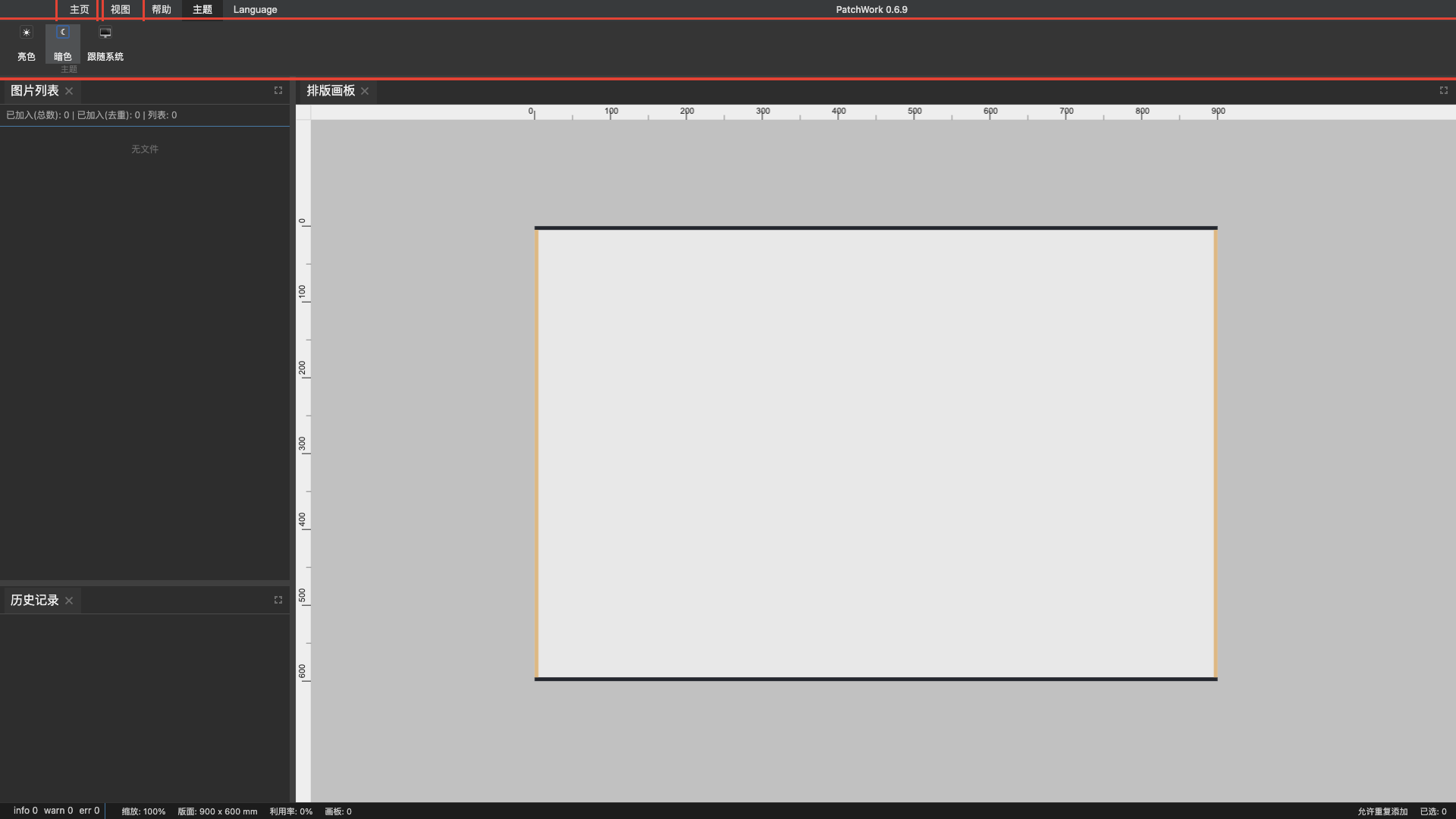
7 Observe Dark Theme
Highlight different areas to show the dark theme effect: Ribbon toolbar, plate canvas, and side panels. The dark theme reduces eye strain and is suitable for extended use and low-light environments.
8 Switch to Light Theme
Click the light theme button. The interface reverts to light tones, and the HTML element data-theme becomes "light".
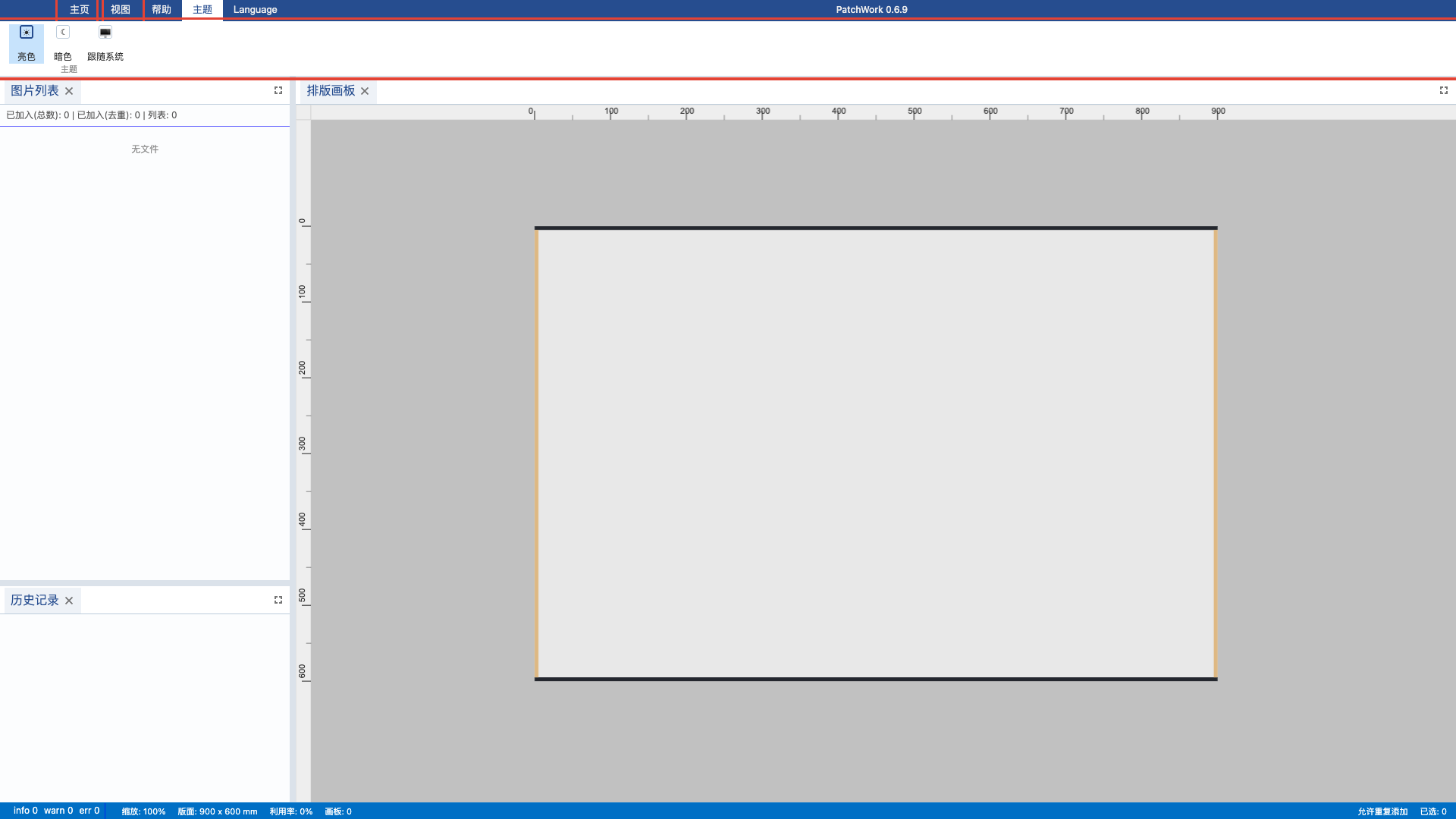
9 Follow System Theme
Click the system theme button. The theme automatically follows the OS appearance preference, syncing when the system switches between light and dark modes.