Invert & Mirror
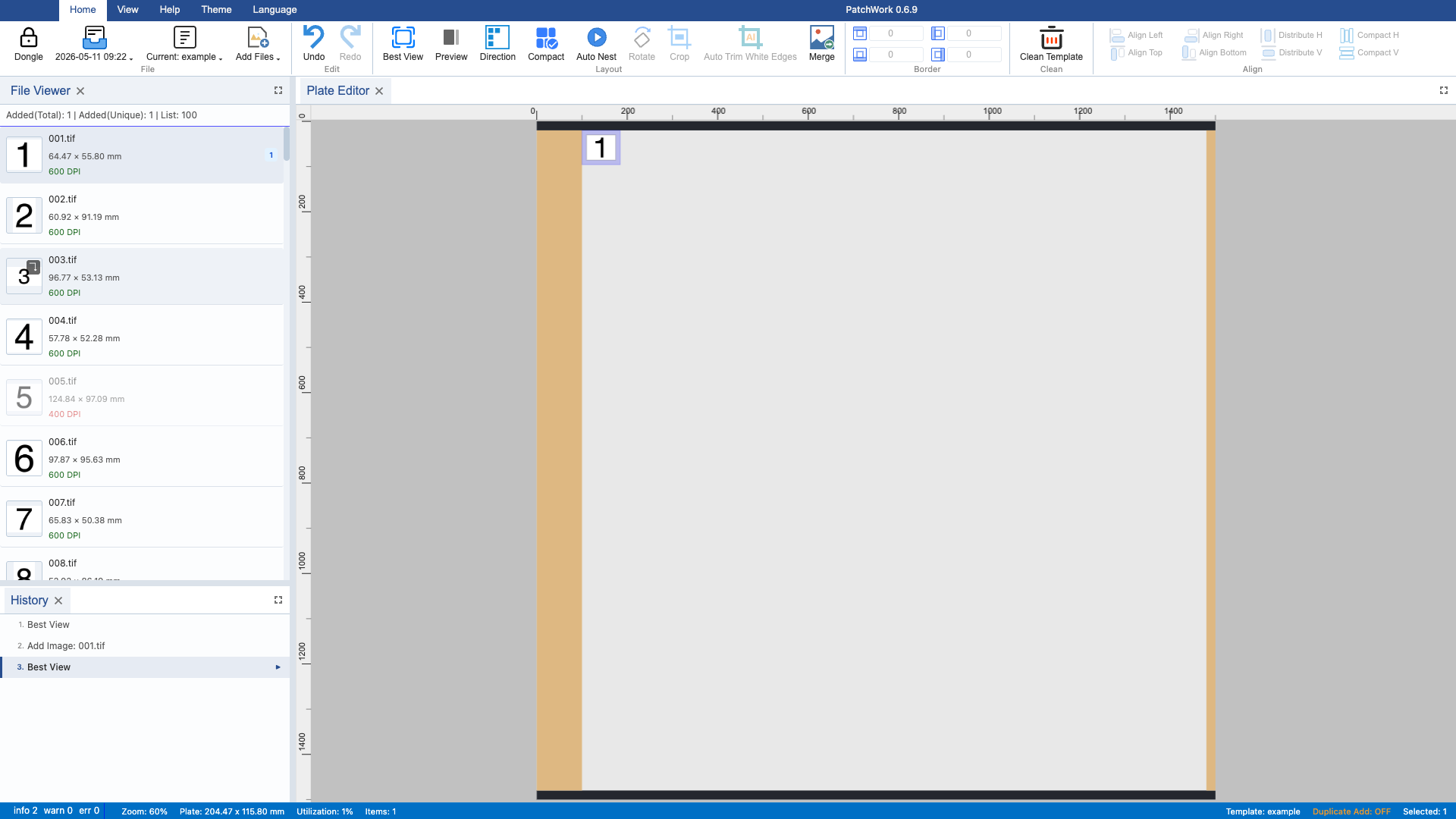
1 Load Template & View Image List
Load a template containing multiple images and view all image thumbnails in the image list panel.
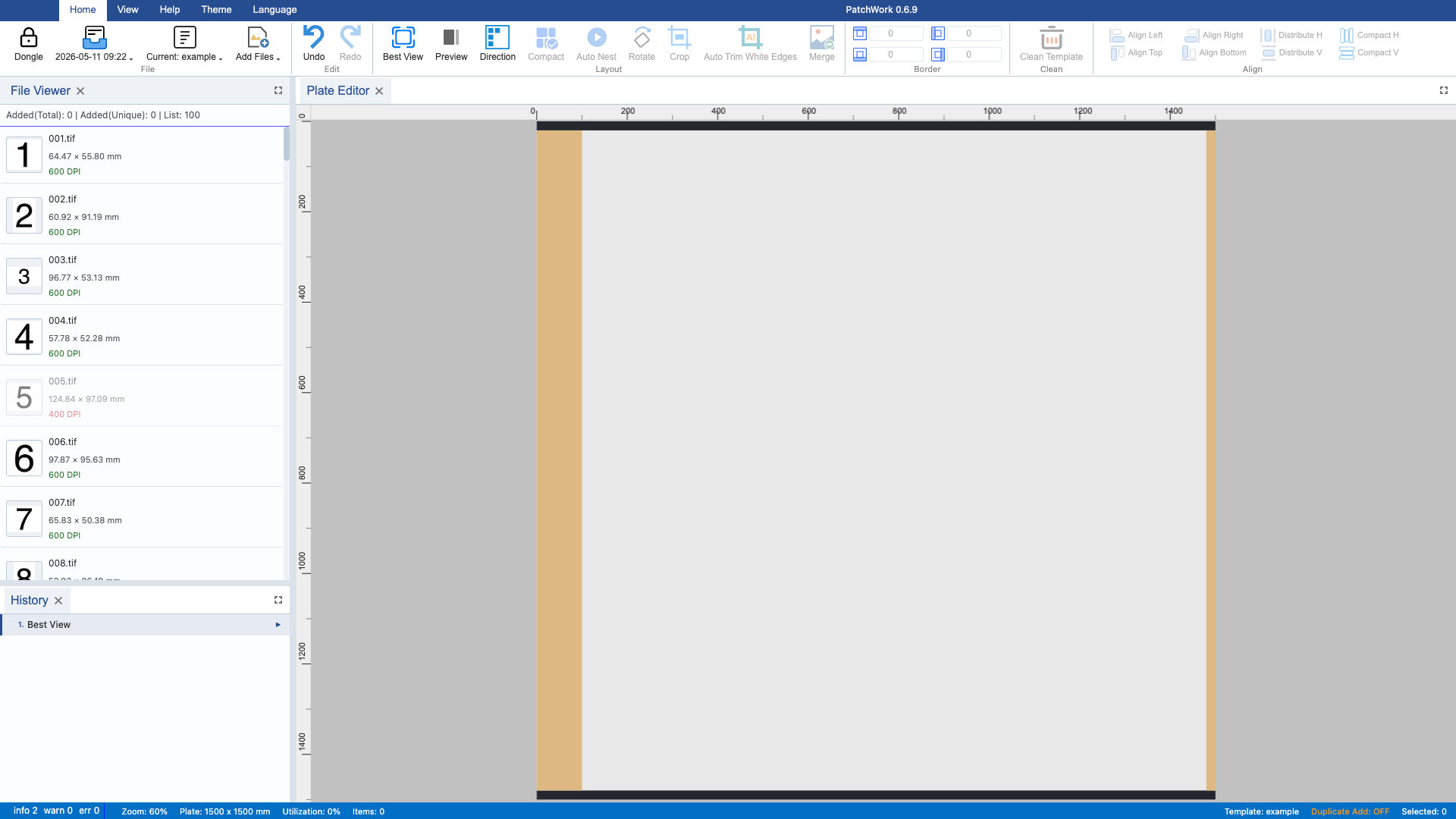
2 Right-click to Invert Colors
Right-click an image on the canvas and select "Invert Colors" from the context menu to apply color inversion.
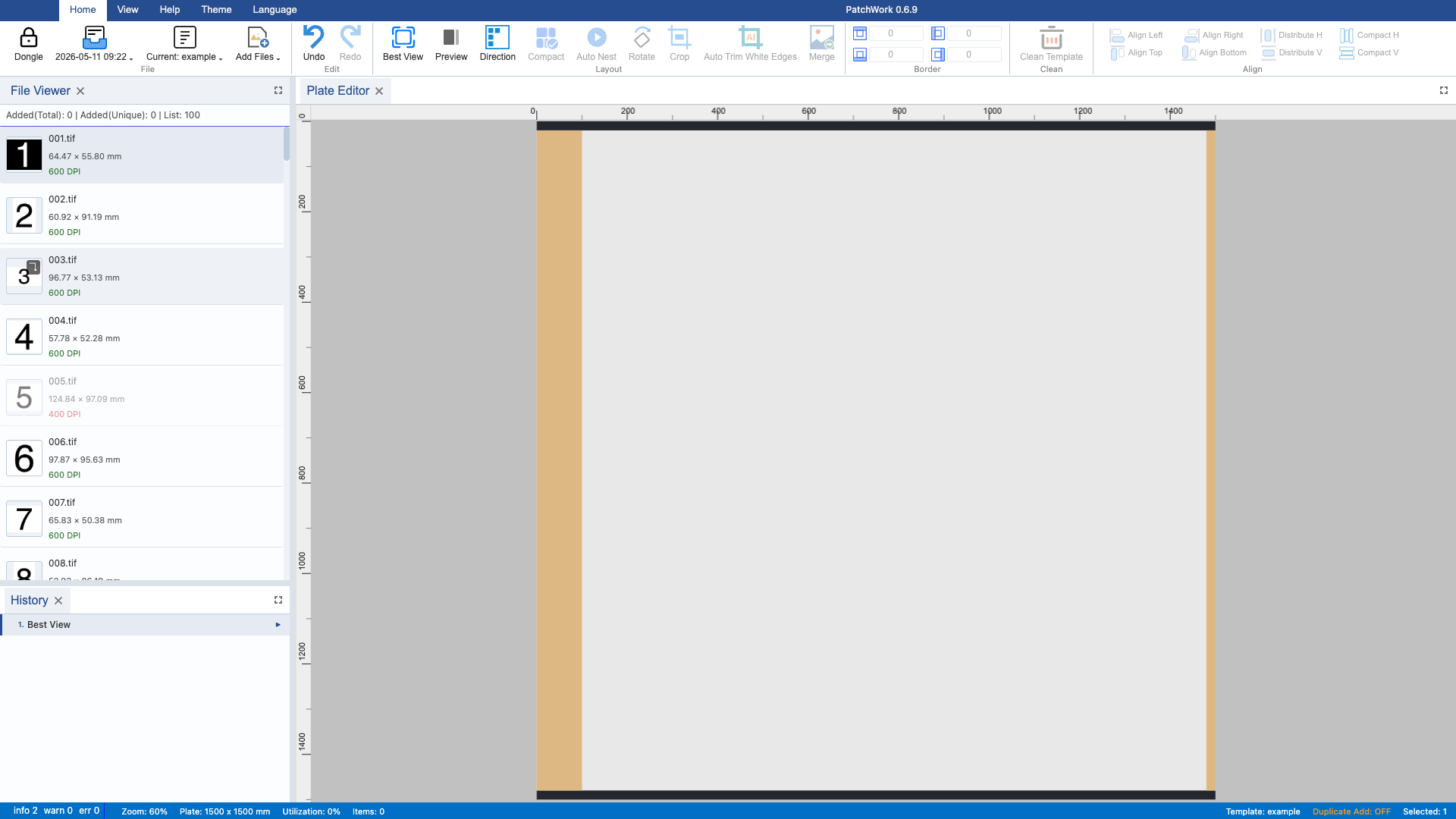
3 Right-click to Flip Horizontal
Right-click the image and select "Flip Horizontal" from the context menu to mirror the image along the vertical axis.
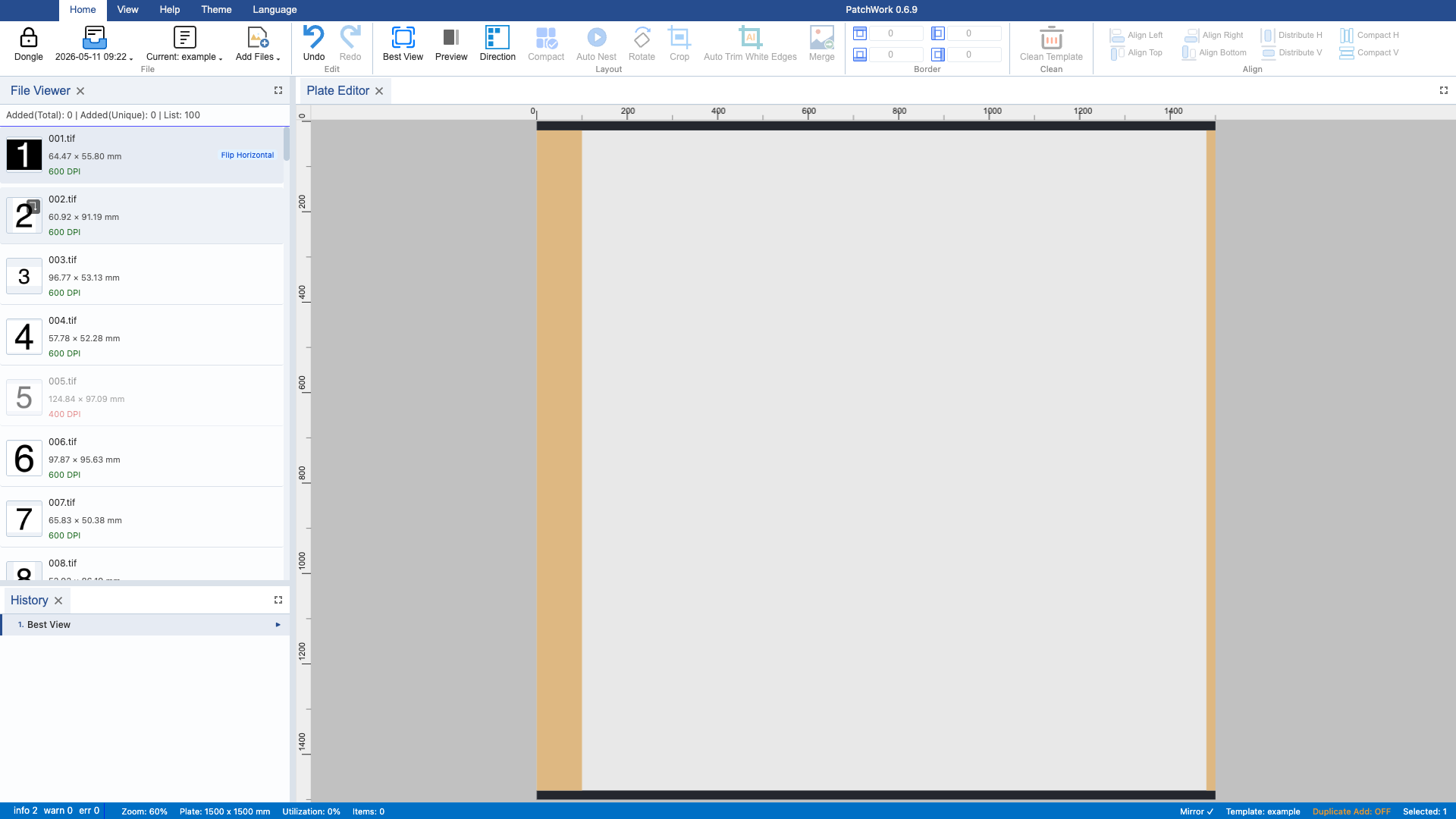
4 Cancel Flip Horizontal
Right-click the image again and select "Flip Horizontal" to cancel the mirror, restoring the image to its original orientation.
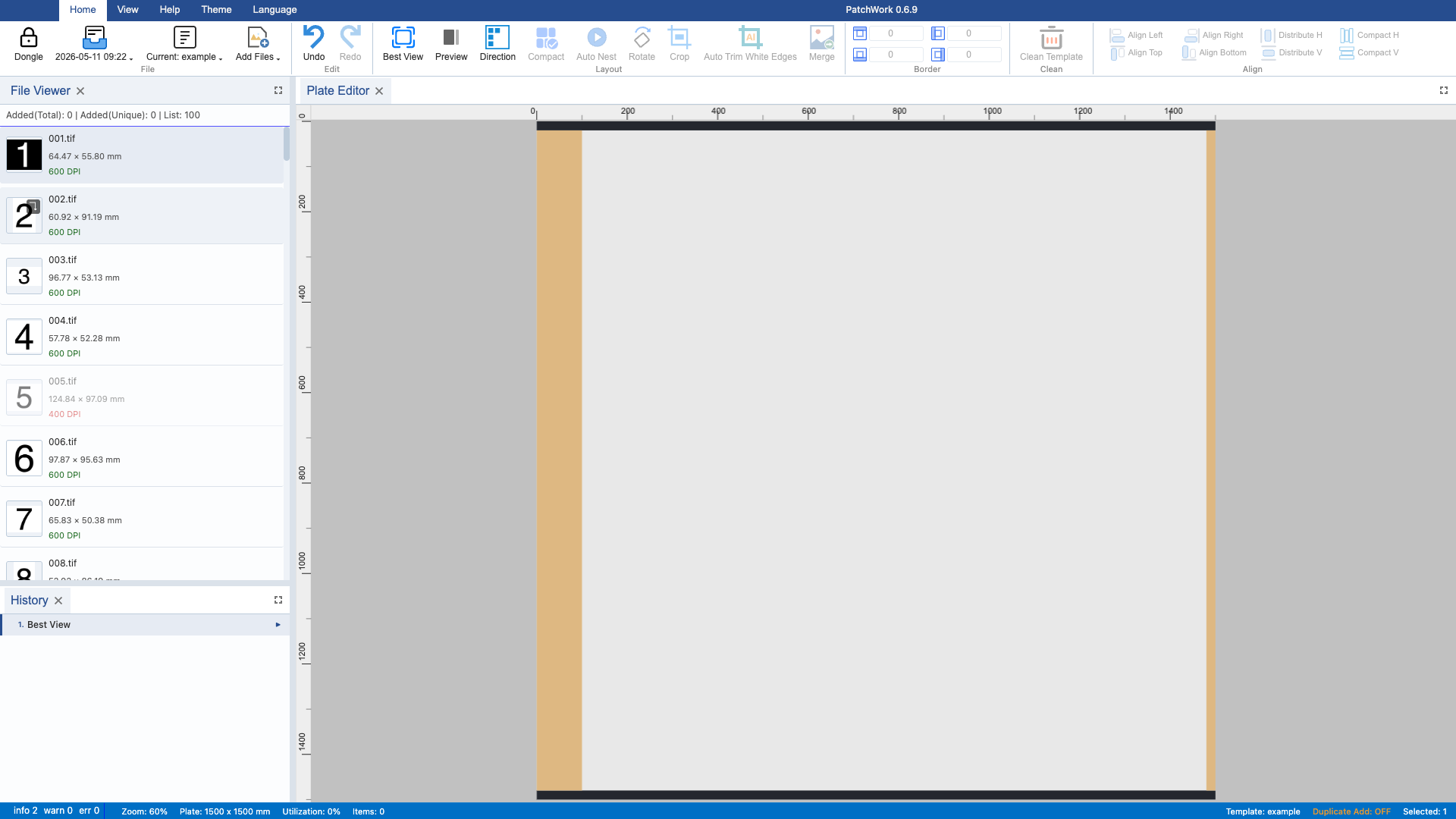
5 Right-click to Flip Vertical
Right-click the image and select "Flip Vertical" from the context menu to mirror the image along the horizontal axis.
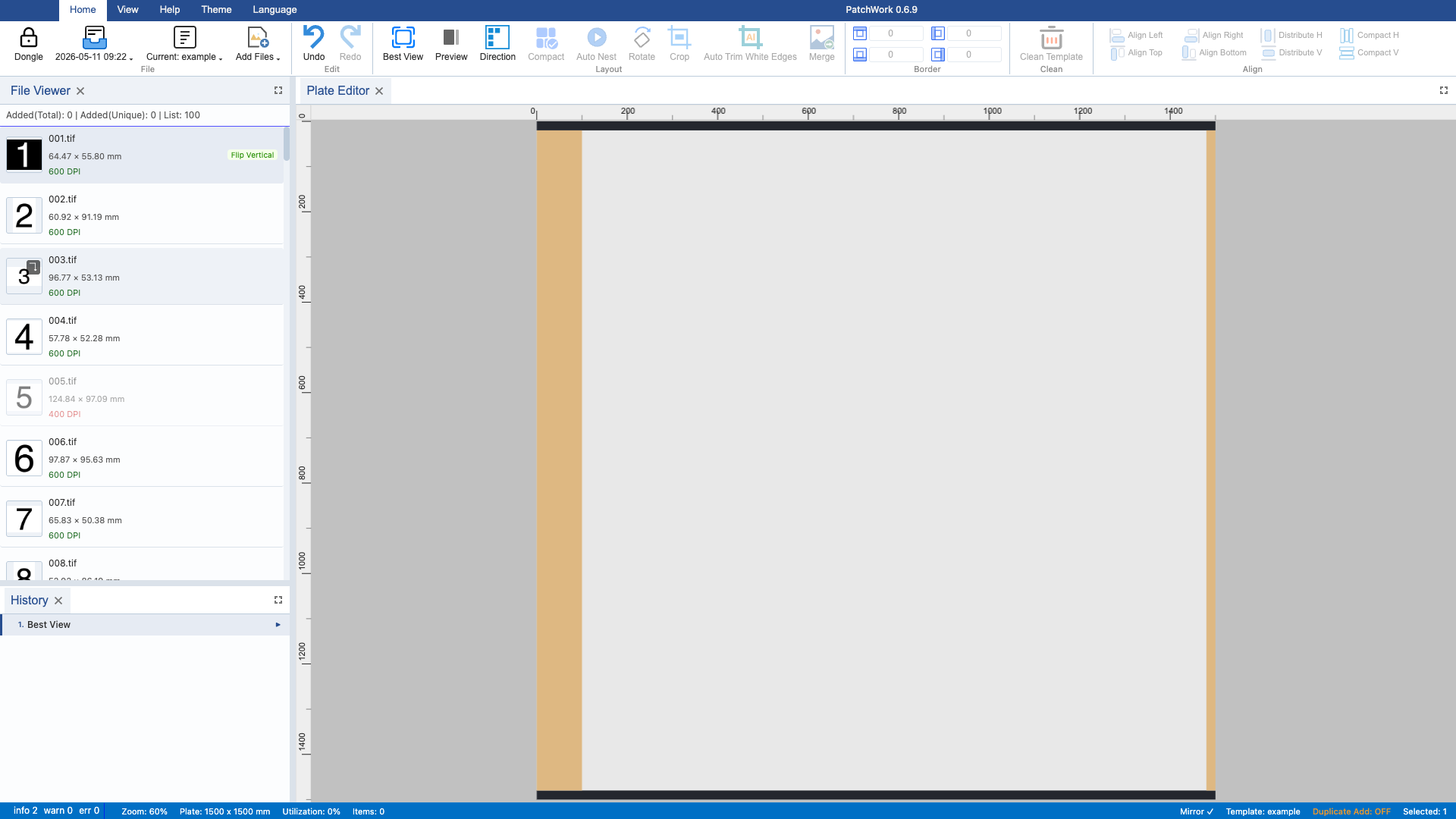
6 Cancel Flip Vertical
Right-click the image again and select "Flip Vertical" to cancel the mirror, restoring the image to its original orientation.
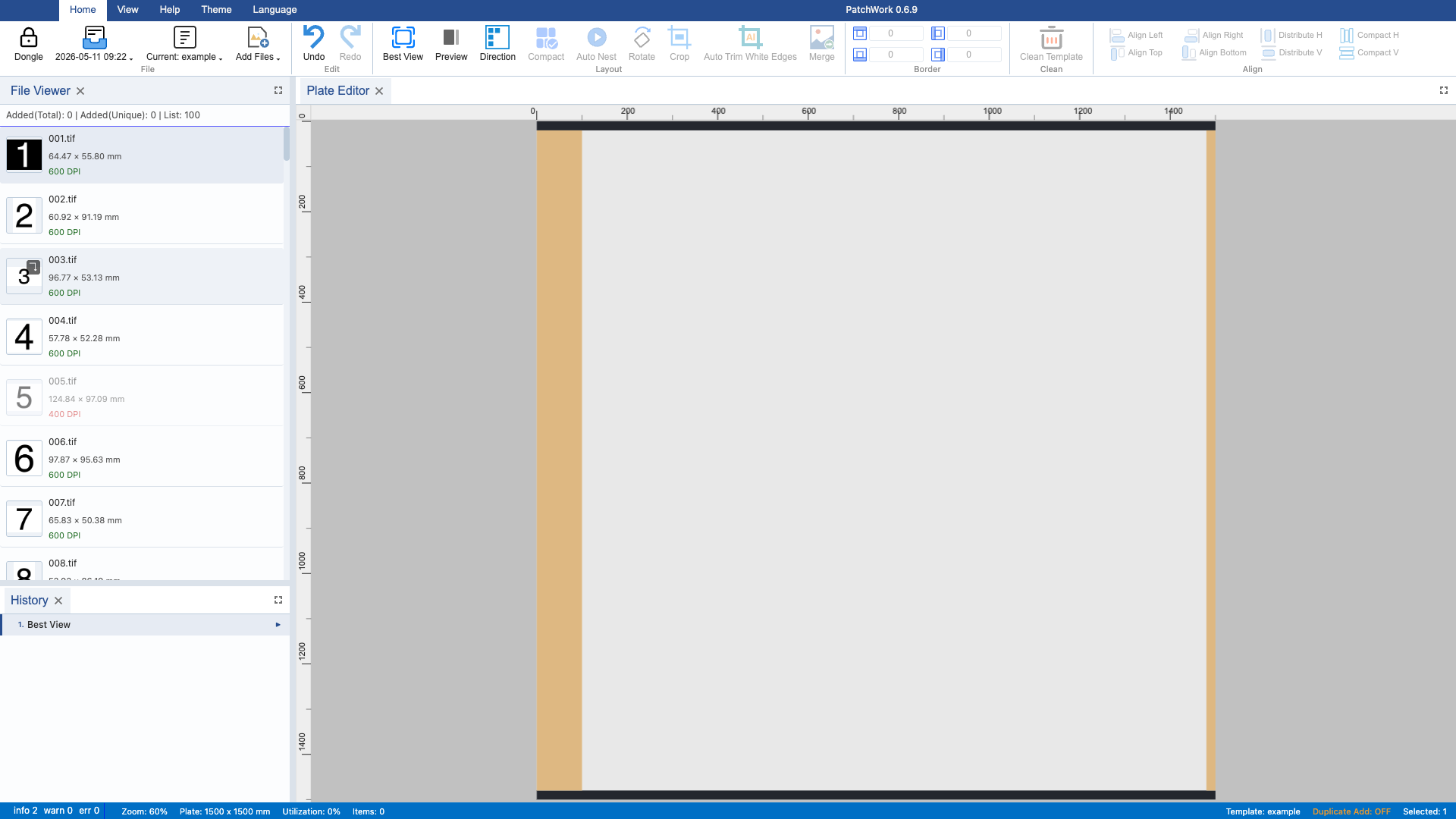
7 Add to Plate & Preview
Add the processed image to the plate layout to preview the effect of invert and mirror operations in the overall composition.
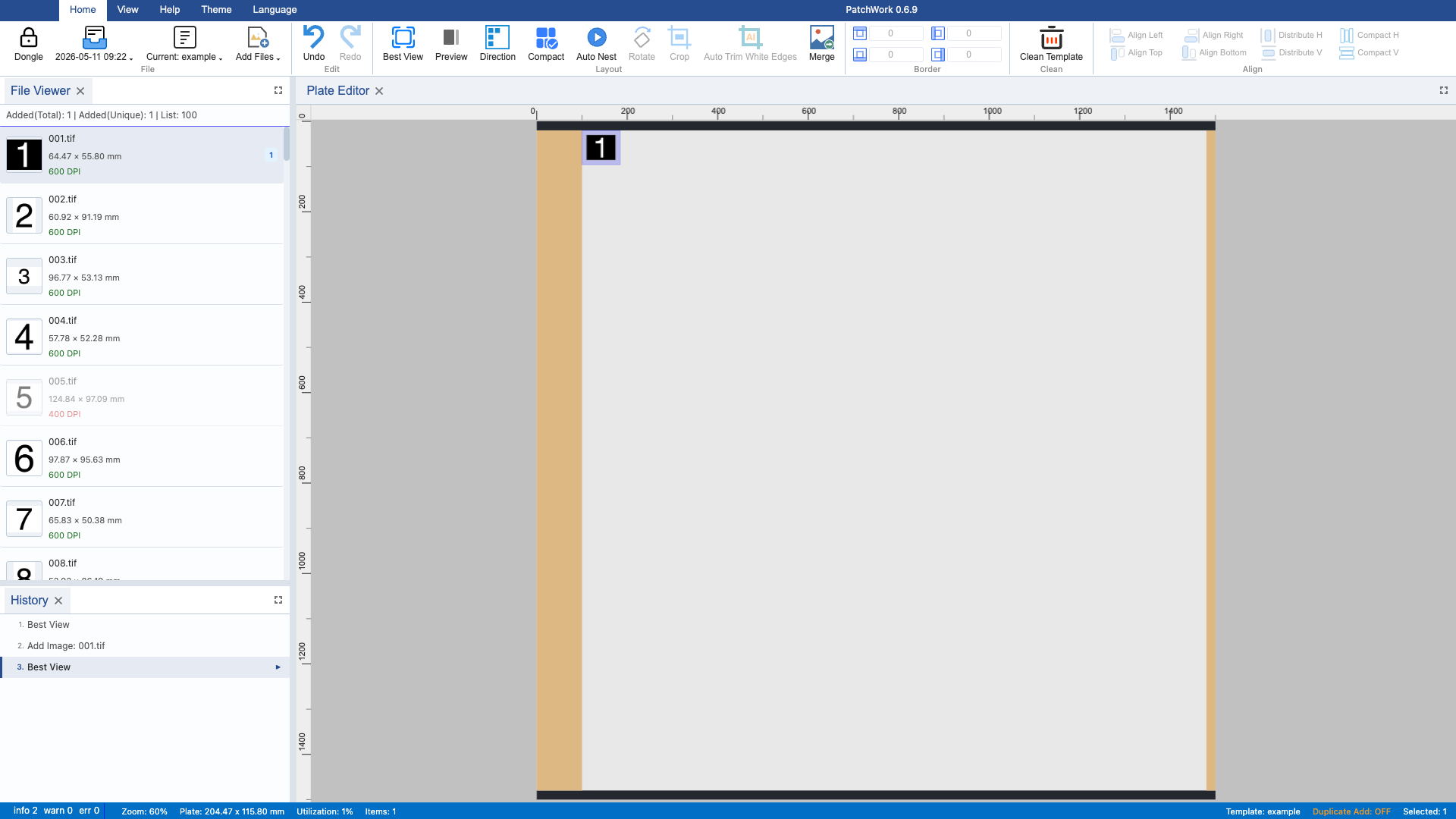
8 Right-click to Cancel Invert
Right-click the inverted image and select "Invert Colors" again to cancel the inversion, restoring the original colors.