History & Log
1 Perform Operations to Create History
Load the example template, add images to the plate, then move one image, rotate one, and delete one. Each action creates an entry in the history.
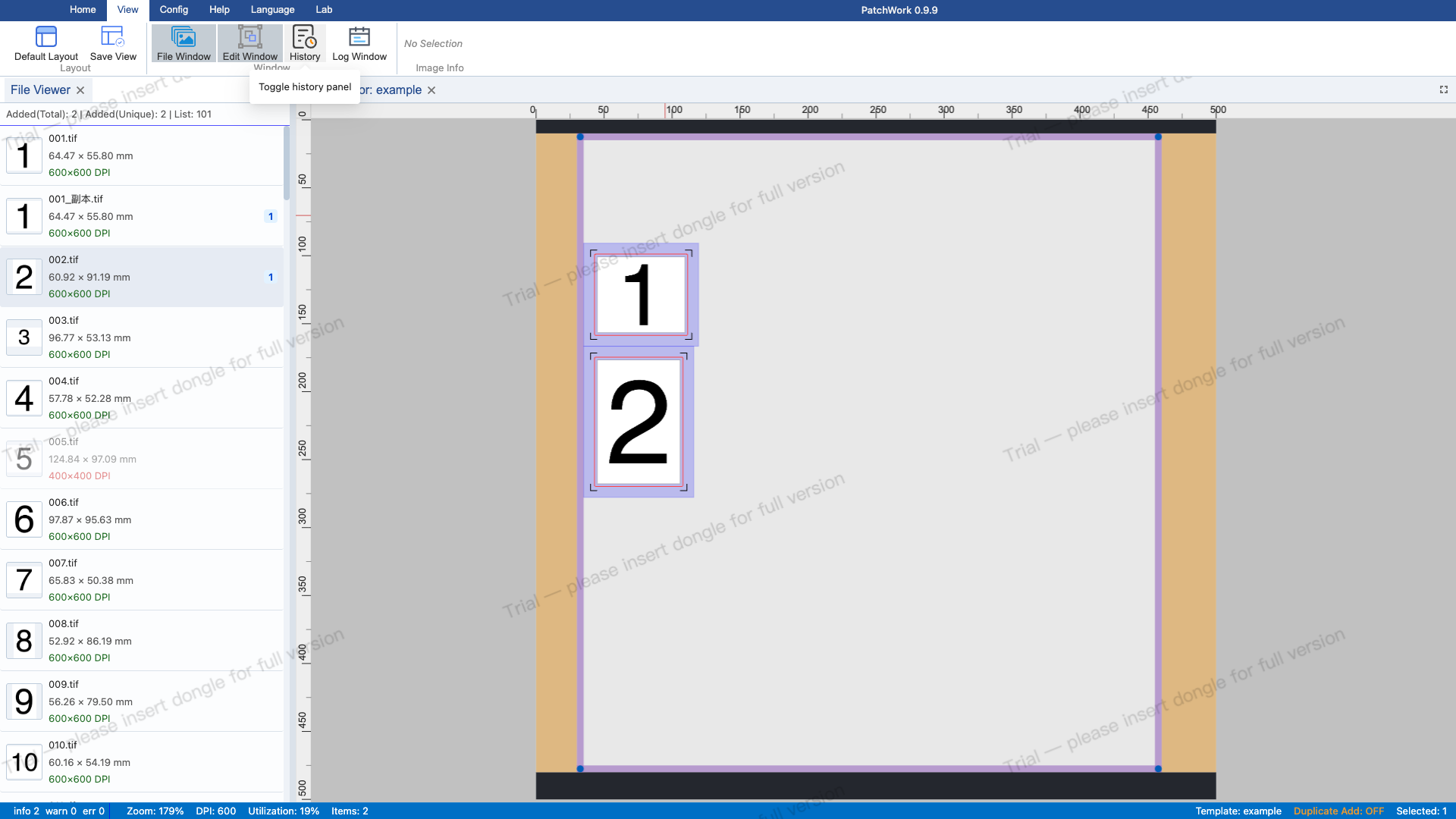
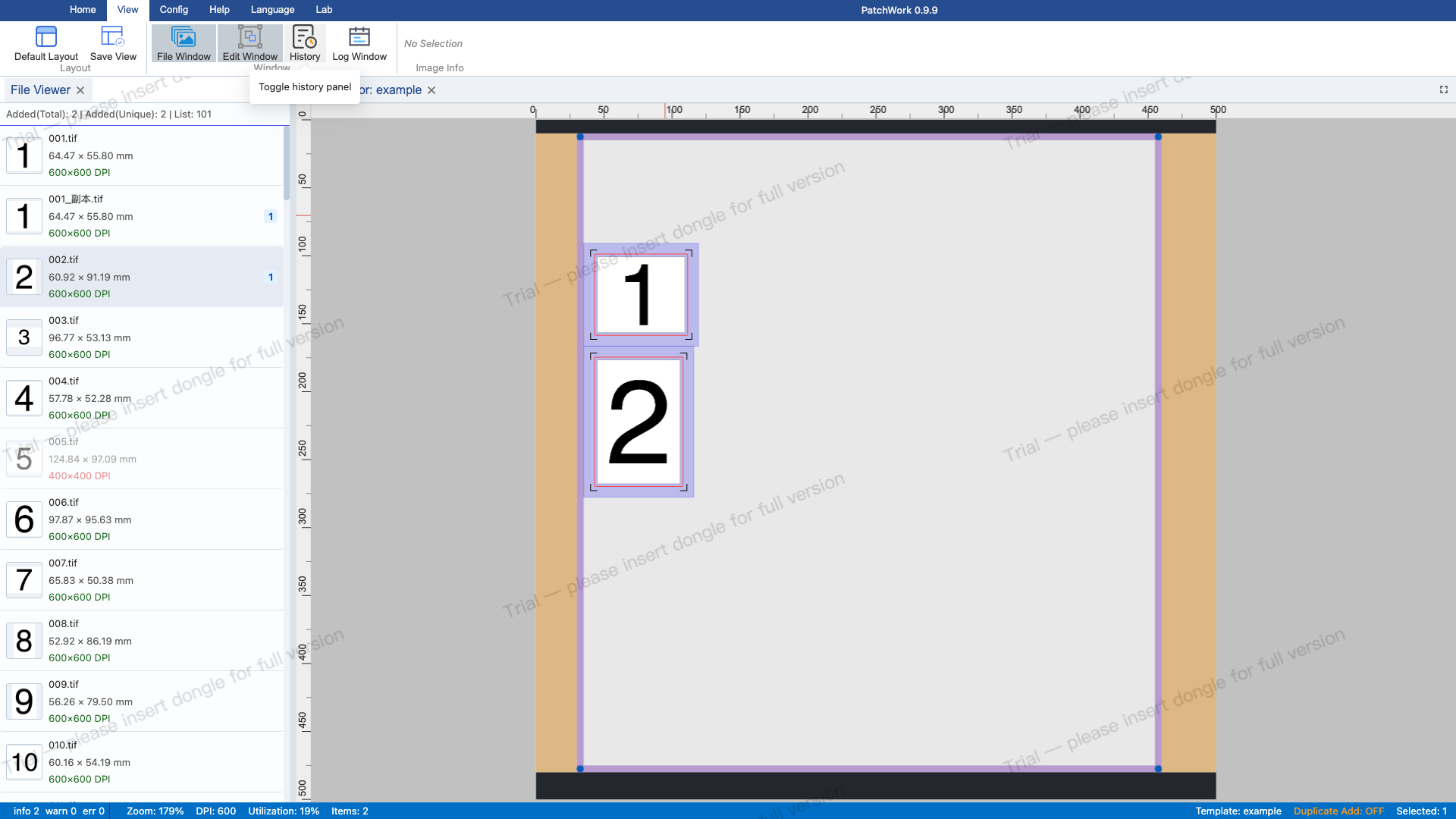
2 Open History Panel
Click the "View" tab in the Ribbon, then click the "History" button. The interface switches to the history FlexLayout tab showing the operation history list.
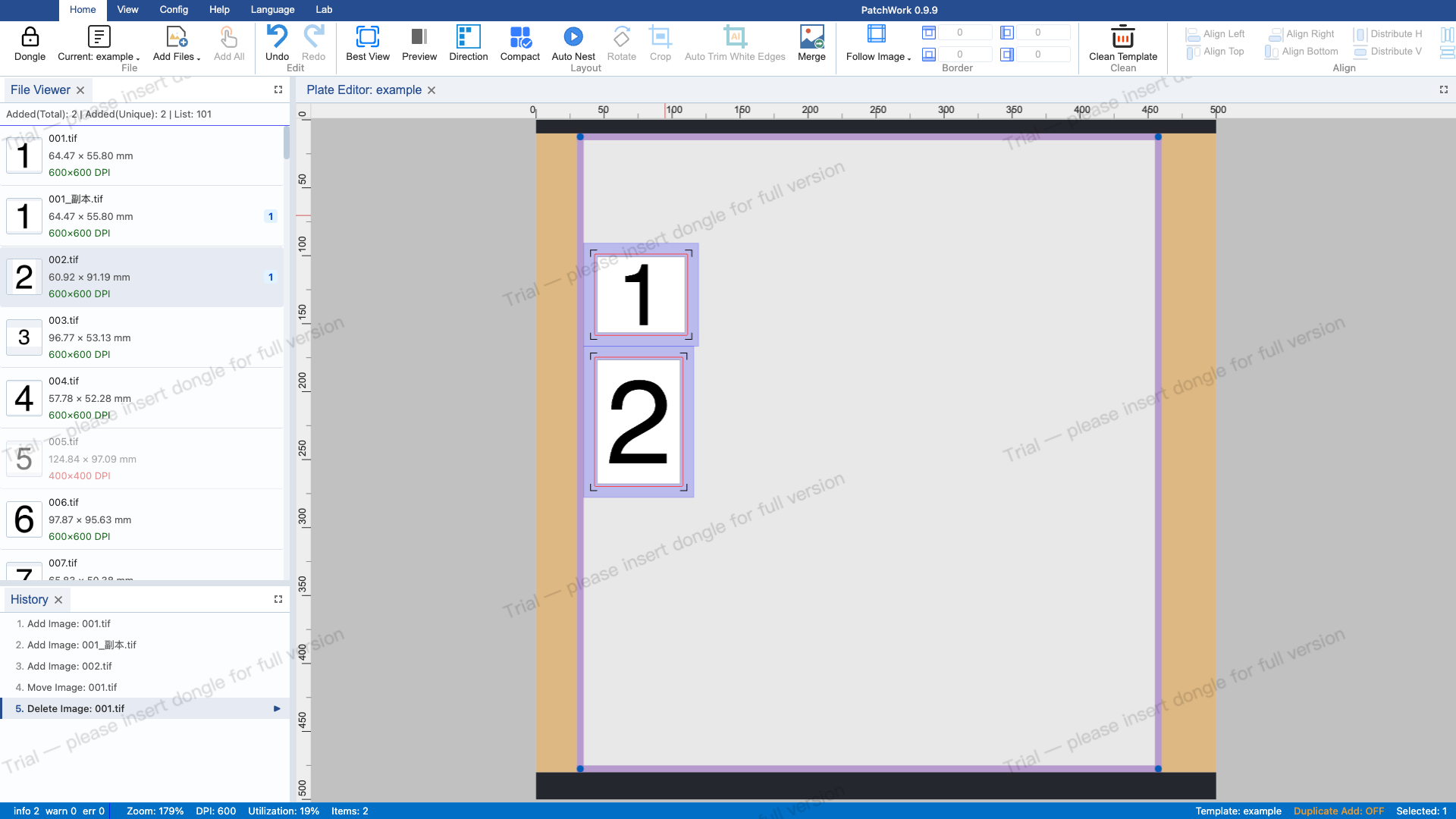
3 View History List
The history list shows numbered operation records. The current position is marked with a triangle. Each entry contains the operation name and time.
4 Undo Operation
Click the undo button or use Ctrl+Z. Watch the history list update as the position marker moves up and the most recent operation is undone.
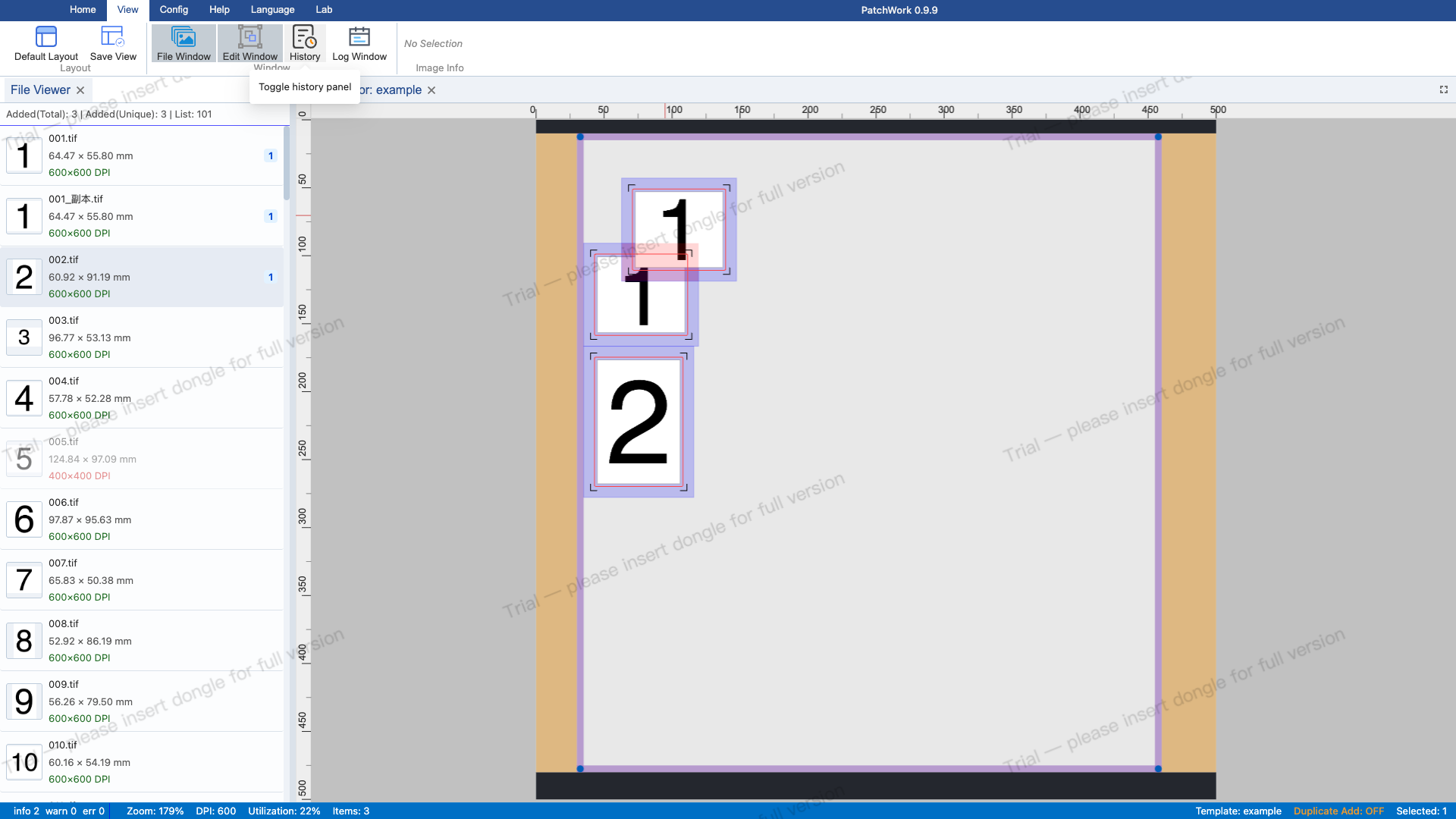
5 Redo Operation
Click the redo button or use Ctrl+Shift+Z. The position marker moves back down and the undone operation is re-applied.
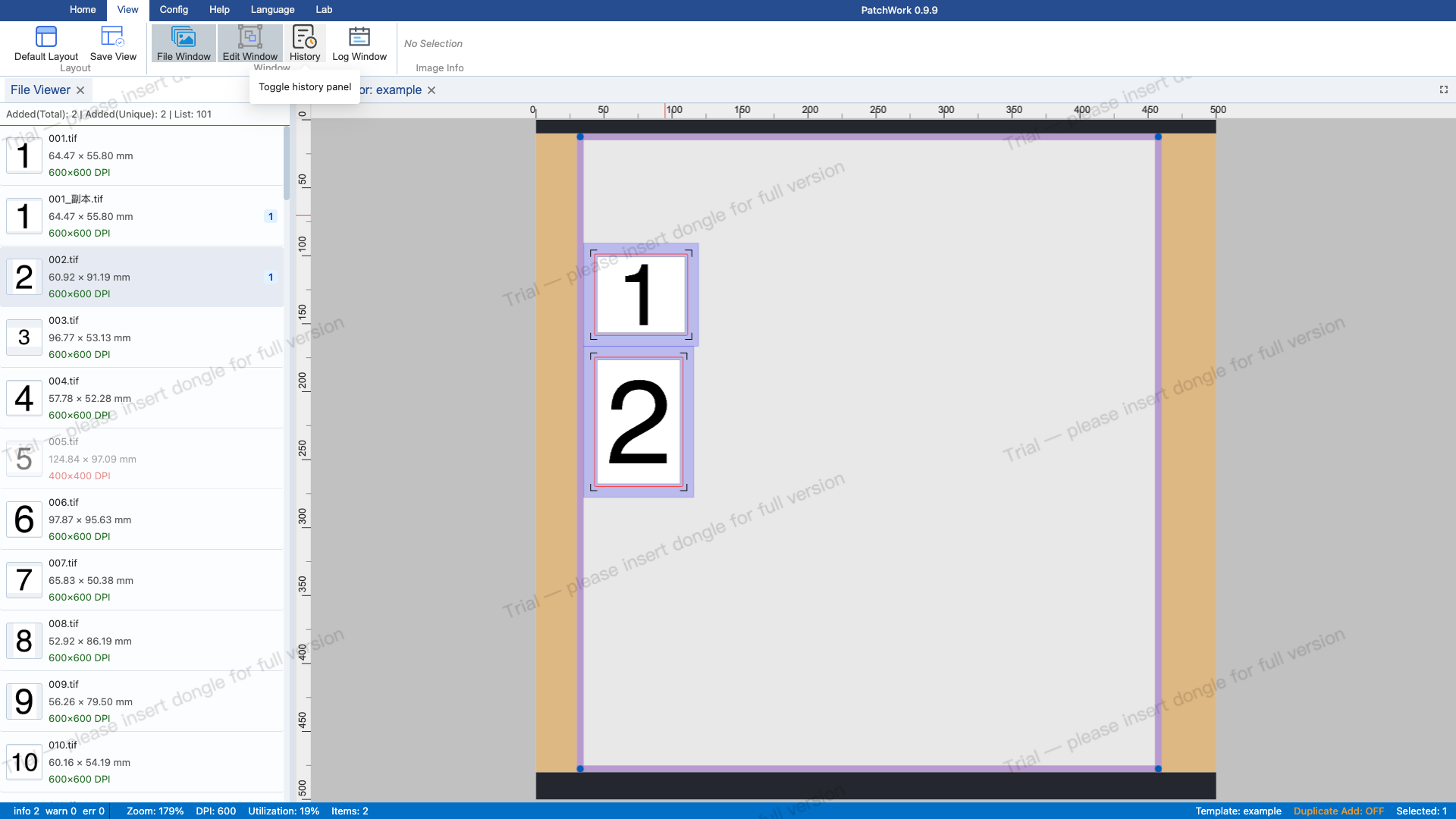
6 Jump to History Entry
Click an earlier history entry to jump directly to that state. All operations after that entry are undone, skipping the step-by-step undo process.
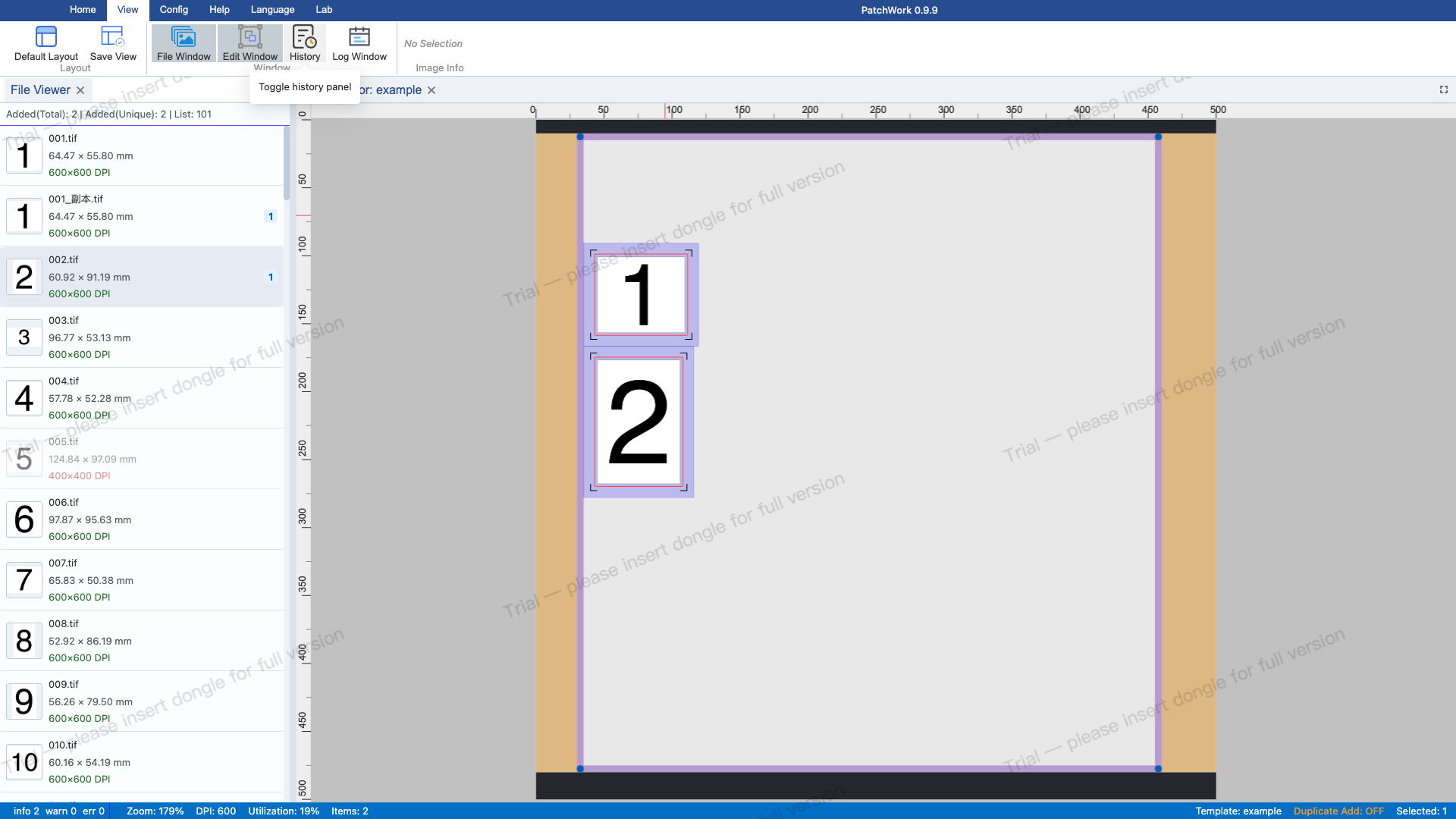
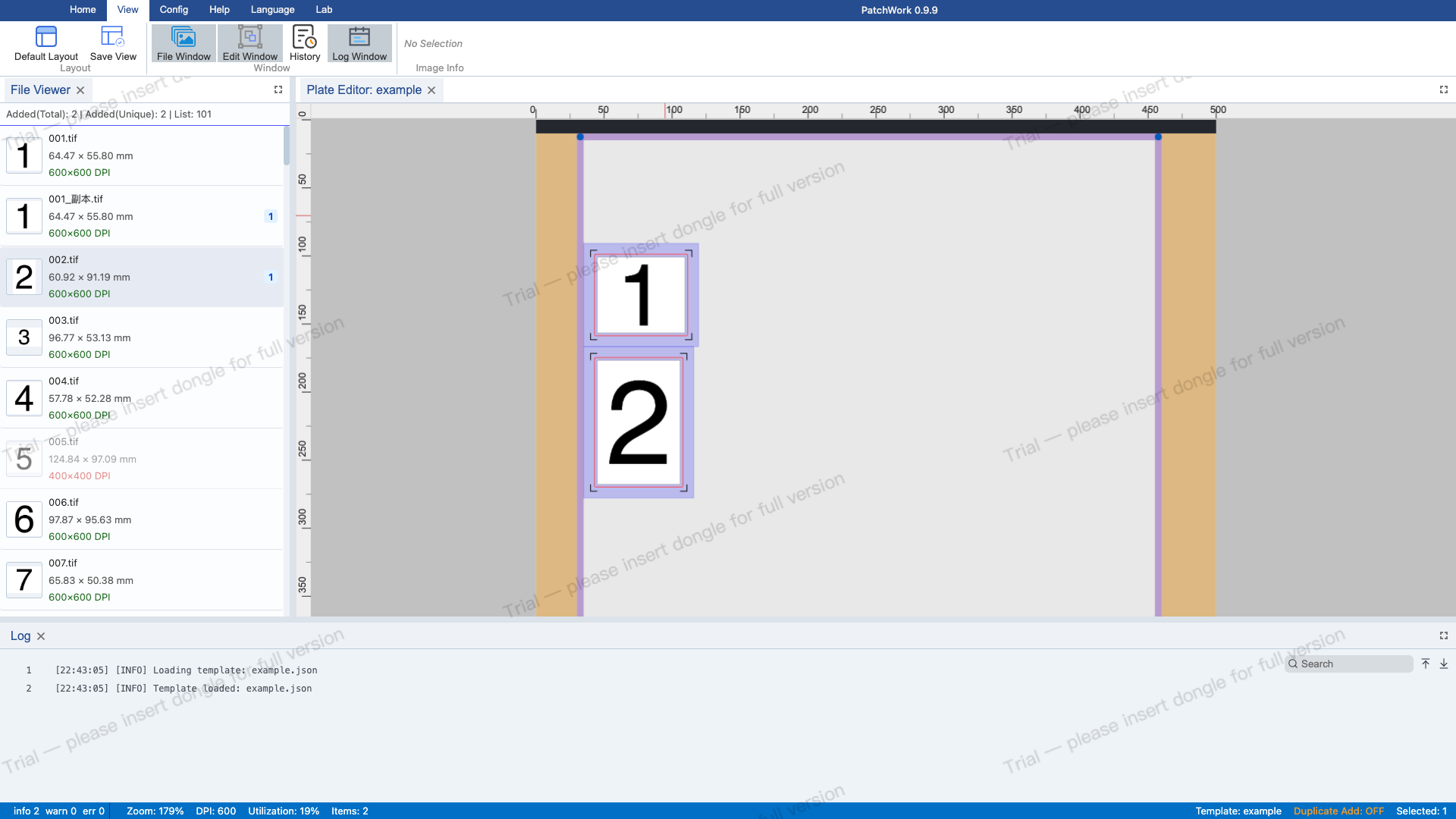
7 Open Log Panel
Click the "View" tab in the Ribbon, then click the "Log" button. The interface switches to the log FlexLayout tab showing runtime logs.
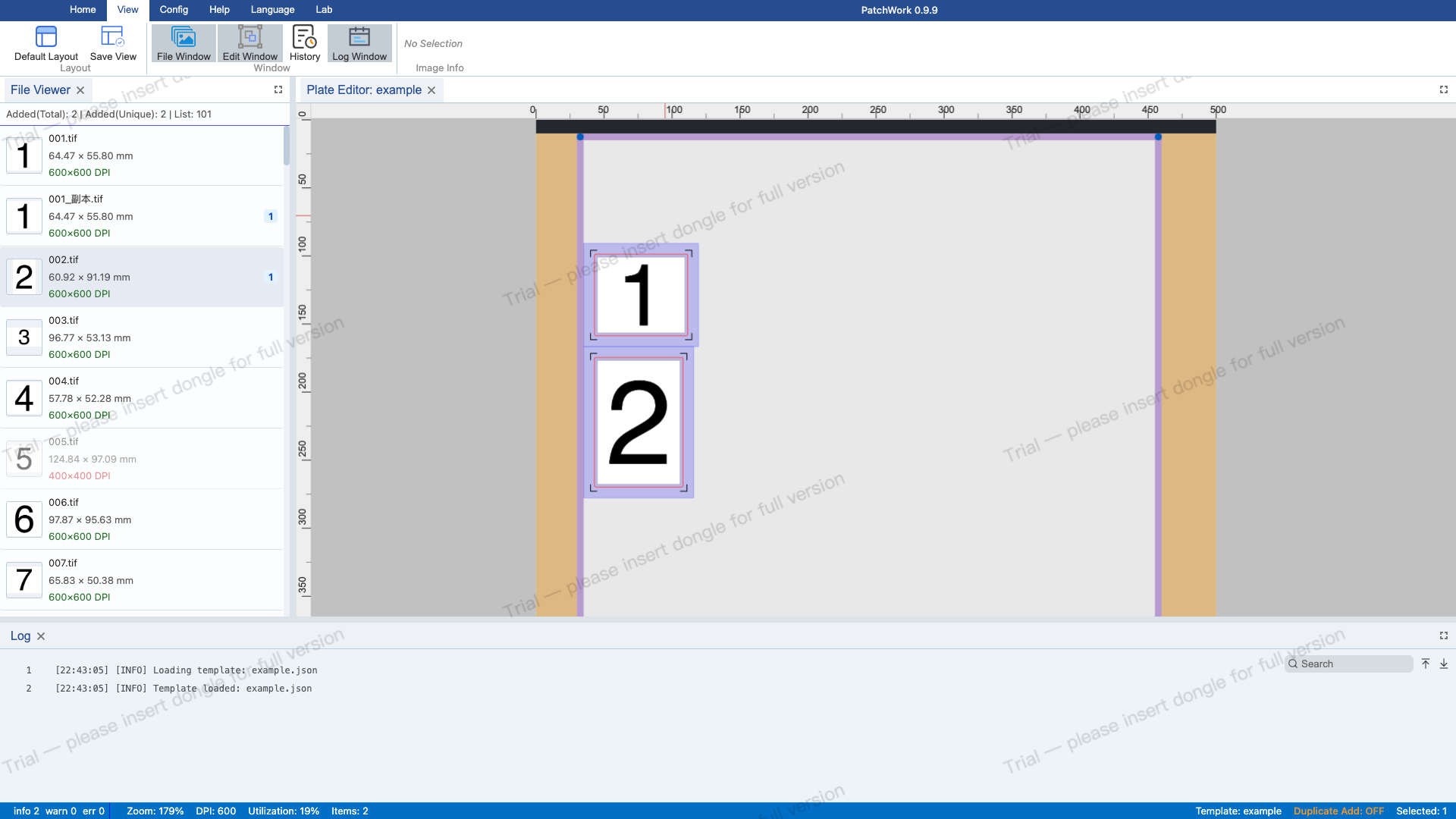
8 View Logs
Log entries show timestamps, log levels (DEBUG/INFO/WARN/ERROR), and message content with color coding for each level. Click the clear button to clear all logs.